
Implementing SSO in MISP: An Enterprise Guide
If you’ve worked with cyber threat intelligence (CTI) for any length of time, you’ve probably run into one or both of the MISP and STIX data formats.
Both are popular open source machine-readable (JSON) standards for sharing threat intelligence in a structured format.
Look under the hood for even a moment, though and you’ll find that while their aims are similar, they approach the problem of describing cyber threats in significantly different ways.
Updated Aug 13, 2026.
Introduction
Malware Information Sharing Platform (MISP) is a widely used open-source threat intelligence platform.
In a large enterprise or government context, integrating MISP with your organisation’s Single Sign-On (SSO) system is crucial for security and ease of use.
SSO allows users to log into MISP using their corporate credentials (managed in systems like Azure Active Directory or Okta), enabling centralised access control and compliance with policies like multi-factor authentication (MFA).
This guide provides a comprehensive overview of MISP’s SSO capabilities, the recent hybrid login improvement, and steps to implement SSO for MISP in an enterprise setting.
We also touch on CloudMISP, a hosted MISP option that comes with SSO integration built-in, as a convenient alternative.
Why SSO for MISP in Enterprise?
Centralised Identity and MFA: Enterprises enforce strict identity management – employees must use corporate identities with MFA for all tools. Enabling SSO for MISP means user authentication is handled by your enterprise Identity Provider (IdP), ensuring compliance with internal security policies (password complexity, MFA, account lifecycle). Users gain convenient access with one set of credentials, and administrators can centrally revoke or provision access.
Role-Based Access Control: With SSO, user roles can be managed in one place. For example, using OpenID Connect (OIDC) SSO, you might assign a “misp-user” or “misp-admin” role to users in the IdP; upon login, MISP will automatically grant appropriate privileges based on those roles. This central management of roles makes governance easier, as all role assignments reside in the corporate directory instead of being managed separately in MISP.
Improved Security and Auditing: SSO integration enables enterprise security features like automatic account deactivation. When an employee leaves or is disabled in the corporate directory, they can no longer access MISP via SSO. (However, note that any API keys or notifications tied to their MISP account may still remain active until handled – we’ll discuss this caveat later.) All login attempts and user provisioning can be monitored through the IdP, simplifying auditing and compliance checks.
User Convenience: Analysts and managers benefit by not having to remember separate credentials for MISP. This reduces password fatigue and IT support burden. They simply use their existing corporate login to access threat intel data on MISP.
MISP’s SSO Capabilities and Hybrid Login
MISP supports multiple SSO integration methods out-of-the-box, compatible with common enterprise IdPs:
- SAML 2.0 via Shibboleth: MISP can act as a Service Provider (SP) in a SAML federation. In practice, an Apache HTTP Server with the Shibboleth module (or similar) is configured in front of MISP. Once SAML SSO is set up with an IdP (like Azure AD or Okta in SAML mode), MISP’s Shibboleth plugin (
ShibbAuth) trusts the authenticated web session. This was a traditional approach used by some organisations (though it required significant configuration and troubleshooting). - OpenID Connect (OIDC): Modern MISP versions include a plugin for OIDC authentication (
OidcAuth). This allows direct integration with OIDC-compatible IdPs such as Azure AD (which supports OIDC), Okta, Auth0, Keycloak, etc. Upon enabling OIDC, users are redirected to the IdP’s login page and upon success are logged into MISP without a local password. MISP 2.4.140 (early 2021) introduced native OIDC support and even a dedicated Azure AD integration plugin, reflecting the demand for enterprise SSO integration. - Azure AD (Microsoft Entra ID) Integration: In addition to generic OIDC, MISP provides an Azure AD authentication plugin (
AadAuth). This is essentially a tailored OIDC integration for Azure. It uses Microsoft’s OAuth endpoints and can query Azure AD graph to verify group membership. Administrators can configure which Azure AD security groups correspond to MISP roles – for example, an “MISP Users” group for general access, or “MISP Administrators” group for admin access. (We’ll cover configuration details in the implementation steps section.) - LDAP Authentication: While not strictly SSO, MISP also has an
LdapAuthplugin. Enterprises with an Active Directory or LDAP server can allow MISP to authenticate users against those directories. This might be used in government setups where direct LDAP binds are preferred over SAML/OIDC. However, LDAP auth alone doesn’t provide SSO’s seamless web login experience or MFA, so it’s less common in modern large-scale deployments. - Client Certificate Auth: For specialized environments (including some government agencies), MISP supports x.509 client certificate authentication (
CertAuth). Users could authenticate with smart cards or certificates. This is beyond the scope of most corporate SSO scenarios but is an option for high-security environments.
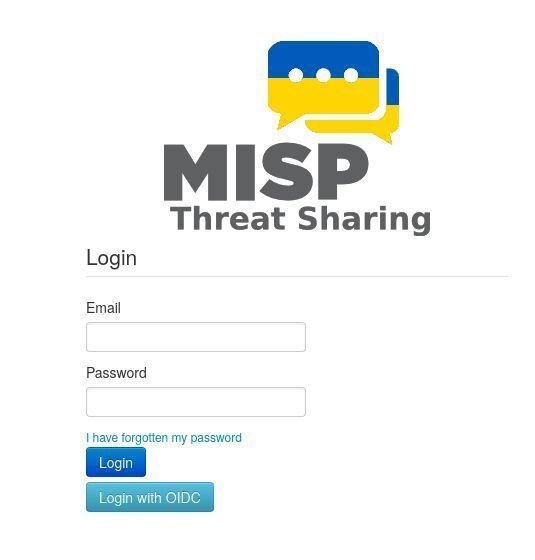
Hybrid Local + SSO Login (New in MISP v2.5.11+): A key improvement for enterprise users is MISP’s new hybrid login capability. Prior to version 2.5.11, enabling SSO would disable local username/password logins entirely – it was an “all or nothing” switch.
This posed challenges: organisations want SSO for regular users, but still need local accounts for non-human access and emergencies. For example, service accounts (for API scripts or tool integrations) are best as local accounts with API keys, and you always want a fallback break-glass admin account that isn’t tied to SSO in case your IdP is down. In the past, turning on SSO meant losing these local accounts or resorting to clumsy workarounds.
With MISP 2.5.11 (and refined in 2.5.12), this trade-off is gone. MISP now allows both SSO and local login simultaneously. In practice, this means you can configure SSO for all your human users (enforcing corporate IAM policies), while still keeping certain local accounts active (for automation, integrations, or emergency admin access). This hybrid login is a big win for security operations, providing flexibility without compromising security or usability:
- Operational Continuity: You can maintain an emergency local admin user even when SSO is enabled, which is critical if your SSO provider experiences an outage. That local admin can log in with a password to access MISP when SSO is unavailable.
- Automation and API Use: You can create service accounts in MISP (with no email or non-person identity) for scripts and tools, without exposing them to SSO. These accounts keep functioning with their API keys unaffected by SSO policies. This clean separation simplifies automation pipelines and avoids the need for “headless” identities in the corporate IdP.
- Clear Separation of Duties: Human interactive users go through SSO (with all monitoring and MFA that entails), whereas non-human integrations use local accounts. This separation improves auditability and governance – you can easily distinguish actions by real users (SSO accounts) vs. automated systems (local accounts) in MISP logs.
Implementing SSO in MISP requires coordination between your MISP server and your Identity Provider. Below is a high-level roadmap, followed by specifics for Azure AD and Okta integrations:
Overall, the hybrid login feature is a quality-of-life improvement for enterprise MISP deployments, eliminating a long-standing pain point. We strongly recommend upgrading to a MISP version that supports hybrid authentication (v2.5.12 or later) before implementing SSO in production.
Implementing SSO for MISP: High-Level Steps
- Prepare Your MISP Environment: Ensure you have a running MISP instance (on-premises or cloud) and that it’s up-to-date. SSO integration is much smoother on MISP 2.5.12+ due to the hybrid login support. If you haven’t deployed MISP yet, you can follow the official install guides or use a pre-built VM/Docker – however, those setup details are outside our scope. (Alternatively, consider a hosted service like CloudMISP with built-in SSO, as discussed later, if you want to avoid manual setup.)
- Choose SSO Protocol (SAML vs OIDC): Decide whether to integrate via SAML 2.0 or OpenID Connect. Both achieve the same result (SSO), but the setup differs:
- OIDC is generally easier if your IdP supports it, thanks to MISP’s built-in OIDC plugin. Azure AD and Okta both support OIDC. OIDC also supports passing roles/groups in token claims, which MISP can map to its roles.
- SAML can be used if your organisation primarily uses SAML apps. This may require configuring Apache with a SAML SP (Shibboleth or similar) and enabling MISP’s Shibboleth (
ApacheShibb) plugin. SAML is well-supported by IdPs like Okta and Azure AD, but the setup is more complex and was historically less documented in MISP. (For the scope of this guide, we will focus on OIDC and Azure’s plugin, since those are common in enterprise deployments. SAML via Shibboleth is possible but involves additional infrastructure.)
- Register MISP as an Application in the IdP: In your identity platform (e.g. Azure AD or Okta), create a new application entry for MISP.
- Azure AD (Entra ID): Register a new Web application (often via Azure AD App Registrations or Enterprise Applications). Configure the Redirect URI to point to your MISP URL. If using OIDC or Azure’s OAuth integration, the redirect URI should be
https://<your-misp-domain>/users/login(this is where Azure will send the auth response token after login). Collect the Client ID (Application ID), the Tenant ID (Directory ID), and generate a Client Secret for this app – you will need to plug these into MISP’s config. In Azure AD, you may also set up claims or group membership for the app: for example, you can have Azure include group IDs or names in the token. (MISP’s Azure plugin will specifically check group names, described below.) - Okta: In Okta Admin, create a new OIDC Web Application (or SAML app if going that route). For OIDC, choose authorisation code flow with PKCE if available. Set the login redirect URI to
https://<your-misp-domain>/users/login(same concept as above). Once created, note the Client ID and Client Secret, and the Issuer URL (Okta domain). If using SAML instead, you’d define the Assertion Consumer Service URL (ACS) as your MISP URL and configure attribute mappings – but again, OIDC is simpler here.
- Azure AD (Entra ID): Register a new Web application (often via Azure AD App Registrations or Enterprise Applications). Configure the Redirect URI to point to your MISP URL. If using OIDC or Azure’s OAuth integration, the redirect URI should be
- Configure MISP for SSO: MISP’s SSO settings are primarily in the
app/Config/config.phpfile (or can be set via the web UI under Administration -> Server Settings -> Authentication if available). You will enable the appropriate auth plugin and provide the IdP details:- For Azure AD (AadAuth plugin): Edit the config to enable Azure auth. For example:
- $config['Security']['auth'] = array('AadAuth.AadAuthenticate');
$config['AadAuth'] = array(
'client_id' => '<Azure-AD-Application-ID>',
'ad_tenant' => '<Azure-AD-Tenant-ID>',
'client_secret' => '<Azure-AD-Client-Secret>',
'redirect_uri' => '<MISP-Base-URL>/users/login',
'auth_provider' => 'https://login.microsoftonline.com/',
'auth_provider_user' => 'https://graph.microsoft.com/',
'misp_user' => 'MISP Users', // Azure AD group name for general users
'misp_orgadmin' => 'MISP Administrators', // group for Org Admins
'misp_siteadmin' => 'MISP Site Administrators', // group for Site Admins
'check_ad_groups' => true
);- The above is an example configuration (the group names “MISP Users”, etc., are arbitrary – they should match actual security group names in your Azure AD that you intend to use for MISP access). When a user logs in via Azure, MISP will validate that the user belongs to one of these groups before allowing access, and assign the corresponding role. The
auth_providerURLs can typically remain as the defaults (they point to Azure’s endpoints). After updating the config, save and restart MISP (or the web server) if required so that the new auth module is active. - For Okta or Generic OIDC (OidcAuth plugin): Enable OIDC in the config:
- $config['Security']['auth'] = array('OidcAuth.Oidc');
$config['OidcAuth'] = array(
'provider_url' => '<OKTA_ISSUER_URL>/.well-known/openid-configuration',
'client_id' => '<Okta-Client-ID>',
'client_secret' => '<Okta-Client-Secret>',
'redirect_uri' => '<MISP-Base-URL>/users/login',
// Optionally, specify the method if required by IdP:
// 'authentication_method' => 'client_secret_post',
// 'code_challenge_method' => 'S256',
'role_mapper' => [
'misp-user' => 3, // Map an IdP role/claim to MISP User (role ID 3)
'misp-admin' => 1, // Map IdP role to MISP Admin (role ID 1)
],
'default_org' => '<Your-Org-Shortname>'
);- Here,
provider_urlis the IdP’s OIDC discovery URL. For Okta, it would look likehttps://<your-okta-domain>/oauth2/default/.well-known/openid-configuration(if using the default auth server). Therole_mapperis crucial: it maps claims from the IdP to MISP roles. You must configure your IdP to include a claim (for example, a group claim or role claim) that indicates the user’s MISP role. In this example, if the OIDC token contains “misp-admin”, the user will be created as an Administrator in MISP. Any user without a matching role claim could be assigned a default role (if you list one). Thedefault_orgsetting specifies which MISP organisation new users should belong to by default (you can use your enterprise’s org name or code). After updating these settings, save and reload MISP.
Security.auth_enforced = true(forces the use of the chosen auth mechanism – in this case SSO – on the web interface).Security.require_password_confirmation = false(so that users aren’t prompted for their old password on certain actions, since SSO users won’t have an MISP-local password).
These can be set in the config or via the web settings once SSO is working.
- Test the SSO Login Flow: With the IdP app and MISP configured, navigate to your MISP URL. You should be redirected to your IdP’s login page (for OIDC, this is automatic; for SAML, you might click a “Login via SSO” link). Log in with a test user account. If everything is set up correctly, after authentication the browser will be redirected back to MISP and you should see the MISP dashboard without needing to enter a MISP password. The first time a new user logs in via SSO, MISP will auto-provision their account internally. Verify that the user’s roles and organisation in MISP match what you expect (e.g. an Azure AD user in the “MISP Administrators” group should appear as an Administrator in MISP).
- Maintain a Fallback Admin Account: Thanks to hybrid login, you can (and should) keep a local admin account for emergencies. Ensure you have at least one non-SSO administrator user in MISP with a strong password that’s kept secure (and ideally, not used regularly). This account can be used if the SSO system is offline or misconfigured. MISP now allows this coexistence, so take advantage of it as a safety net.
- Service Accounts and API Keys: Plan how to handle integrations that use the MISP API (for pulling IOCs, syncing with SIEM, etc.). The recommended approach is to create dedicated local accounts in MISP for these purposes (e.g. an account named “API Bot” or a separate account per integration) and generate API keys for them. Since SSO is enforced only for interactive logins, these local accounts can still authenticate via API key. This separation is cleaner and more secure than trying to use SSO tokens for automation. With hybrid login, these local accounts happily coexist alongside SSO users.
- User Provisioning and De-Provisioning: One thing to note is that MISP’s internal user database will store accounts created via SSO, and it does not automatically remove or disable them if they are removed from the IdP. For example, if an employee is deactivated in Azure AD or Okta, they won’t be able to SSO login (IdP will fail to authenticate them), but their MISP account may still exist with active API keys or may continue to receive email notifications. To address this:
- Leverage any group/role-based restrictions in your config (so only users in certain groups can even log in).
- If using OIDC, consider enabling the
OidcAuth.offline_accessandOidcAuth.check_user_validitysettings. These allow MISP to periodically re-check a user’s status via the IdP (using a refresh token) and disable MISP accounts that no longer exist in the IdP. For example, you might setcheck_user_validity = 300(seconds), and run thecake user check_user_validitycommand as a cron job to clean up users. - Alternatively, establish an internal process to audit MISP user lists against your directory periodically and manually disable or delete accounts that are no longer authorised.
- Advanced Considerations: If integrating with other providers, the steps are analogous:
- For Keycloak or other in-house IdPs, use OIDC (as Keycloak fully supports OIDC). Define a client for MISP and use the OIDC plugin as described. Keycloak can be configured similarly to the example (the WLCG documentation provides a detailed example for Keycloak).
- For Ping Identity, OneLogin, or others: if OIDC is available, use it. If only SAML is available, you might deploy a Shibboleth SP container in front of MISP or use a reverse-proxy that handles SAML and passes headers to MISP. MISP’s flexible plugin system can accommodate these, but they require more engineering effort.
By following these steps, you’ll integrate MISP into your enterprise SSO ecosystem, making it smoother for analysts to access and safer for the organisation to manage.
CloudMISP: A Managed MISP with SSO Ready-to-Go
For organisations that want the benefits of MISP without the heavy lift of deployment and SSO configuration, CloudMISP is an option to consider.
CloudMISP is a fully managed and hosted MISP service provided by Cosive, aimed at enterprise customers. One of its key features is built-in SSO support for providers like Okta and Azure Active Directory (Entra ID). In other words, the CloudMISP team will set up and integrate MISP with your corporate identity system for you, as part of the service.
Some highlights of CloudMISP in an enterprise context:
- Quick Deployment: Cosive handles the installation and hosting of MISP on dedicated cloud infrastructure. Your instance can be up and running in as little as one business day, which accelerates time to value.
- SSO and Integration Included: The service includes configuring SSO to your requirements. Whether you use Okta, Azure AD, or another common IdP, they will integrate it so your users can log in with SSO from day one. This saves you from digging into config files and troubleshooting SAML/OIDC issues.
- Maintenance and Updates: MISP releases frequent updates (often monthly). CloudMISP handles all patching and upgrades for you, ensuring you always have the latest features (like the hybrid login) and security fixes without the operational overhead.
- Customisation and Support: In a dedicated enterprise MISP, you may need custom configurations, integrations (SIEM feeds, etc.), and ongoing support. CloudMISP provides custom setup (for example, connecting MISP with Splunk or Sentinel for IOC sync) and direct access to MISP experts for help and training. This can be very appealing for managers who need the capability but lack in-house MISP expertise.
In summary, CloudMISP is essentially a “MISP-as-a-Service” that already includes SSO integration. If your team is light on resources or you prefer a turnkey solution, this could be a viable route. It allows your threat intelligence analysts to focus on using MISP, rather than spending time on server setup and authentication infrastructure.
Conclusion
Implementing Single Sign-On for MISP in an enterprise environment significantly improves security and user experience. MISP’s support for SAML and OpenID Connect means it can integrate with virtually any modern corporate IdP – from Azure AD and Okta to custom solutions. With the introduction of hybrid login in recent versions, organisations no longer have to choose between security (SSO) and flexibility (local accounts); they can have both.
For threat intelligence analysts and managers, this means a smoother workflow: users log in with familiar corporate credentials and gain appropriate access based on their role, while administrators retain control and emergency access options. Service accounts and integrations continue to function through local API keys, ensuring that automation isn’t disrupted by the move to SSO.
That said, setting up SSO requires collaboration with your identity/security team to register the application and map roles correctly. It also demands careful configuration on the MISP side – but once in place, it largely reduces daily friction (no more separate MISP passwords) and aligns MISP with enterprise security standards. Be mindful of user lifecycle management (removing or disabling MISP accounts when people leave) and use MISP’s features or processes to address that gap.
If deploying and managing this integration seems daunting, options like CloudMISP offer a convenient alternative, delivering a fully managed MISP with SSO and other enterprise integrations pre-configured. This can de-risk the implementation and provide expert support.
Overall, MISP with SSO is a powerful combination for large organisations. It brings MISP into the fold of your centralised IAM, enhancing security through MFA and unified policies, while making life easier for users. By following the steps outlined and leveraging MISP’s new capabilities, you can confidently deploy MISP in a corporate or government environment with Single Sign-On – ensuring that threat intel sharing is both effective and secure.